




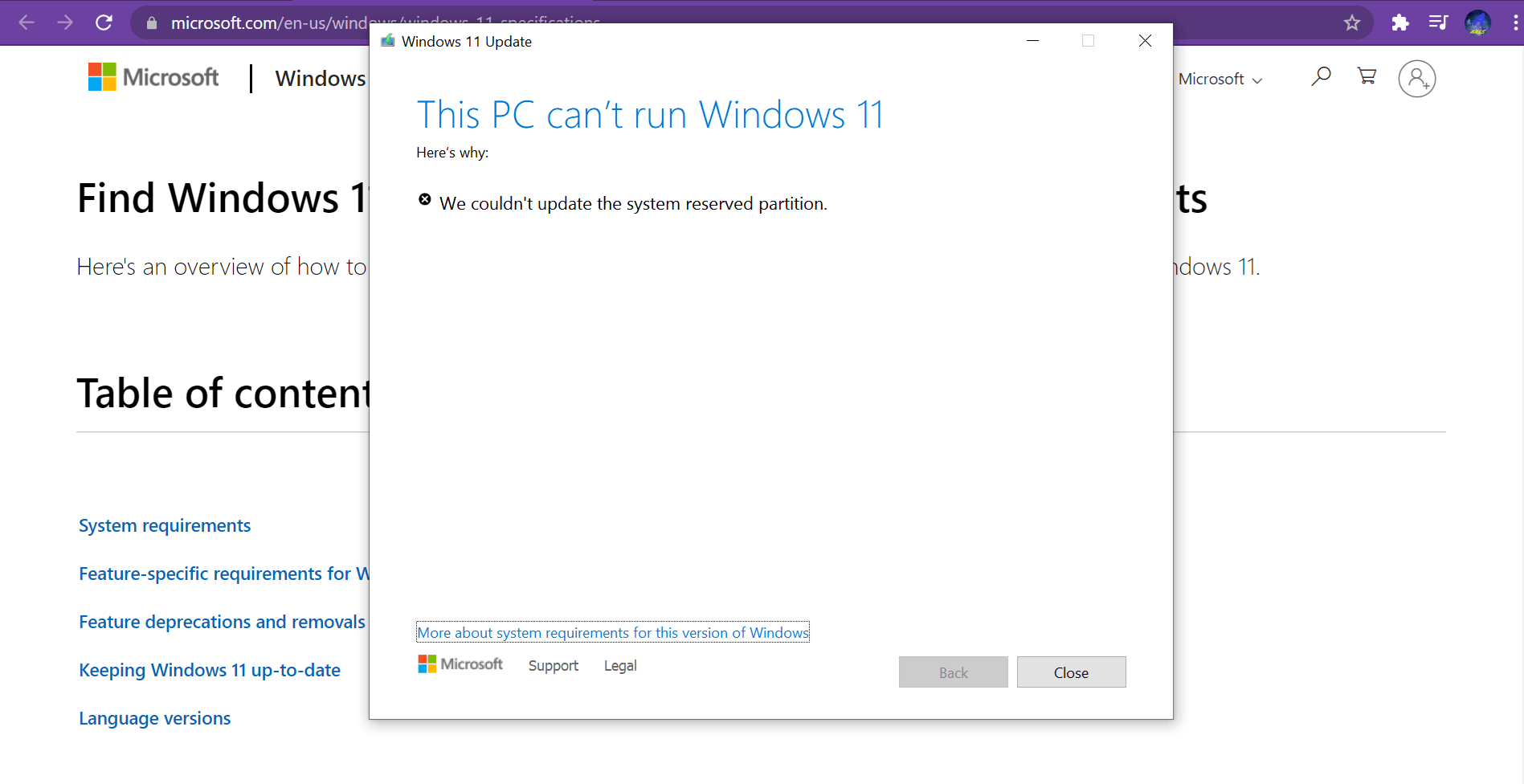
The Windows 11 update process is usually smooth. However, many users face a specific error. The message says, “We couldn’t update system reserved partition.” This error stops your installation or update immediately.
Usually, this happens because the System Reserved Partition (SRP) is full. This small partition needs enough free space for update files. In this guide, we will help you fix system reserved partition error quickly.
Why Does This Windows 11 Error Occur?
The SRP stores important boot information. For a successful update, it needs at least 100 MB of space. Over time, unnecessary files like fonts fill this area. When Windows tries to write new data, it fails. You must clear some space to proceed.
Step-by-Step Guide to Fix the Error
Follow these steps carefully to fix system reserved partition error. We will use the Command Prompt for this process.
1. Open Command Prompt as Administrator
First, press the Windows key + S. Type cmd in the search bar. Right-click on it and choose Run as administrator. This gives you the needed permissions.
2. Assign a Drive Letter
You cannot see the SRP in File Explorer by default. You need to assign it a letter. Type the following command: mountvol y: /s This command maps the partition to the Y: drive.
3. Navigate to the Fonts Folder
Now, you must enter the drive. Type Y: and press Enter. Then, navigate to the fonts directory using this path: cd EFI\Microsoft\Boot\Fonts
4. Delete Unnecessary Fonts
Fonts take up a lot of space in the SRP. You can safely delete them to fix system reserved partition error. Run this command: del *.* Confirm the action if prompted. This will free up the required space for your update.
5. Unmount the Drive
After cleaning the files, you should remove the drive letter. Use this command: mountvol y: /d This keeps the partition hidden and safe again.
Final Steps and Tips
Now, try to run your Windows 11 update again. The error should be gone. If you still face issues, check other folders for junk files. Always be careful when deleting files from the SRP. Deleting the wrong file might cause boot problems. This method is the most effective way to fix system reserved partition error manually.